


Qu'est-ce que Signal Bot ?
Un Signal Bot est un outil de trading qui aide les investisseurs à identifier des opportunités d’achat ou de vente à partir de signaux définis par l’utilisateur. Contrairement aux bots de type grid ou martingale, qui reposent sur des paramètres fixes, les Signal Bots offrent une plus grande flexibilité, car les utilisateurs configurent eux-mêmes leurs signaux sur la plateforme TradingView. Cela permet de prendre en charge différentes stratégies et de répondre à des besoins d’investissement variés.
Types de signaux courants :
1)Technical Indicators : Utilisez divers indicateurs techniques (tels que les moyennes mobiles, l'indice de force relative (RSI), les bandes de Bollinger, etc.) pour générer des signaux d'achat ou de vente. Par exemple, lorsqu'une moyenne mobile à court terme passe au-dessus d'une moyenne mobile à long terme, on peut considérer qu'il s'agit d'un signal d'achat.
2)Figures chartistes : analyser des configurations graphiques spécifiques, telles que les figures « tête et épaules » ou les doubles creux, afin d’anticiper les mouvements futurs des prix.
3)Sentiment du marché : utilisez des indicateurs du sentiment du marché, tels que l'indice de peur et de cupidité, pour évaluer la surchauffe ou le refroidissement du marché et générer des signaux de trading.
4) Actualités et événements : Générer des signaux de trading basés sur des nouvelles ou des événements spécifiques (tels que des lancements de projets, des annonces de partenariats, des changements de réglementation, etc.)
5)Quantitative Trading : Utilisez des algorithmes et des modèles d'apprentissage automatique pour analyser de vastes ensembles de données et générer automatiquement des signaux de trading.
1.1 Fonctionnement de Signal Bot
Après avoir configuré un bot sur TradingView, les utilisateurs peuvent le connecter et le lier aux Gate Bots afin de créer un signal. Les utilisateurs définissent ensuite des paramètres tels que la paire de trading, la marge, l’effet de levier et la taille des ordres. Lorsque les conditions définies par le bot sont remplies, le signal est automatiquement envoyé aux Gate Bots. À la réception du signal, le Signal Bot exécute la transaction. Par exemple :
Un utilisateur crée un bot basé sur le RSI sur TradingView et le lie à la plateforme Gate. Lorsque le RSI 1 croise au-dessus du RSI 2, un signal d’achat est déclenché et le bot exécute automatiquement l’achat. Lorsque le RSI 1 croise en dessous du RSI 2, le bot ferme la position. L’utilisateur peut arrêter le bot manuellement à tout moment.
1.2 Types de signaux disponibles
Le Signal Bot de Gate s’intègre de manière fluide à TradingView. Vous pouvez exploiter les outils d’analyse technique, les indicateurs et les graphiques de TradingView pour identifier les tendances du marché et les opportunités de trading. En définissant des règles et des paramètres spécifiques pour le bot, vous pouvez établir des conditions d’achat et de vente et générer des signaux lorsque ces conditions sont remplies. De plus, vous pouvez personnaliser des scripts sur TradingView afin de configurer des signaux. Les deux types de signaux sont entièrement pris en charge par le Signal Bot de Gate.
2. Comment créer un Signal Bot ?
Remarque : les Signal Bots sont actuellement pris en charge uniquement sur la version web.
2.1 Créer un signal personnalisé
Allez sur le site officiel de Gate, cliquez sur [Bots] - [Bot Pool] - [Signal Bot] - [Ajouter un signal personnalisé].
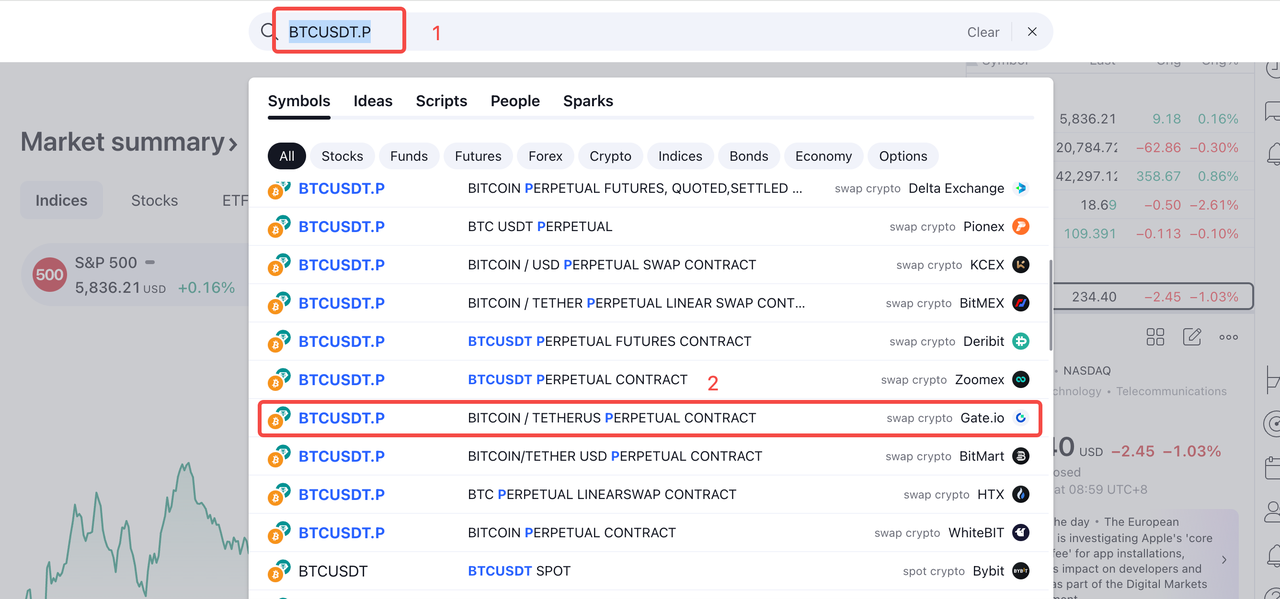
Renseignez le nom du signal, les détails de l'alerte, etc., puis cliquez sur [TradingView] dans le coin supérieur droit. Sur TradingView, recherchez "BTCUSDT.P" pour trouver le logo Gate et cliquez dessus.
2.2 Définition des paramètres
Retournez à Gate Bots et configurez les paramètres de base comme la paire de trading, l'effet de levier et la marge. Les paramètres avancés permettent de personnaliser les types d'ordres, les conditions d'entrée et de sortie, etc.
2.3 Configurer les signaux TradingView sur le Web
Sur la page d'accueil du bot, cliquez sur [Ajouter un signal personnalisé], saisissez le nom et la description du signal, puis cliquez sur [Suivant] pour continuer. Gate fournira un Webhook et un modèle de message pour l'intégration avec
TradingView:
https://tradingview.gatedata.org/quant-signal-service/quant-trading/tradingview/signal/4cf1693a13fb47e19b7288fa61431ecf
{
"exchange": "((exchange))",
"symbole": "((ticker))",
"date/heure":"((timenow))",
"maxLag":"30",
"action":"((strategy.order.action))",
"position_size":"((strategy.position_size))",
"market_position":"((strategy.market_position))",
"prev_market_position":"((strategy.prev_market_position))"
}
Sur TradingView, allez sur [Alerte], collez le message d'alerte dans le champ [Message].
Puis cliquez sur [Notifications], collez le Webhook vers Tradingview (nécessite une authentification à deux facteurs).
2.4 Opérer sur TradingView
1)Créer un nouveau bot : modifier le Pine Script.
-
Exemple de script Pine (Gate's RSI Bot)
Pine Script peut tracer MACD, RSI, etc., sur un graphique en chandelier et afficher les résultats du backtest aux points d'entrée/sortie.
Exécutez le backtesting
Prise en charge de l’export des résultats de backtesting et de l’analyse des performances -
Configuration des paramètres du bot
Capital initial (initial_capital) : représente le montant de départ disponible pour votre bot, libellé dans la devise de base. Par défaut, il est défini à 100 000. Il peut être nécessaire d’ajuster ce montant afin de trader efficacement certains actifs.
Taille de l’ordre (Order Size) : ce paramètre nécessite une valeur et un mode de calcul afin de déterminer la taille de l’ordre :
Quantité : Le bot achètera ou vendra un nombre spécifié d'unités de trading ou de contrats (par exemple, BTC).
USDT : Le bot spécifie la taille de l'ordre en termes d'une devise cotée (par exemple, USDT). Par exemple, si le prix de ETHUSDT.P est de 1 000 et que votre quantité est de 100, vous achèterez 0,1 ETH par ordre.
% des fonds propres : La taille de la position est calculée en pourcentage des fonds propres disponibles au début d'une transaction. Par exemple, avec un capital initial de 10 000 et un pourcentage d'équité de 10%, et avec le prix d'ETHUSDT.P à 1 000, le montant de l'achat par entrée serait de 1 ETH.
- Terminer la configuration du bot et créer une alerte
L'alerte doit correspondre au signal configuré sur l'interface web de Gate.
3. Comment visualiser votre Signal Bot ?
[Pool de bots] - [Mes bots] - [Bots actifs] - [Signal Bot]
4. Comment arrêter le Signal Bot ?
4.1 Méthodes de résiliation
a. Résiliation manuelle : Les utilisateurs peuvent mettre fin au bot à tout moment, et toutes les positions seront clôturées au prix du marché (similaire aux CTA Bots).
b. Résiliation automatique :
1)Si la marge d'un sous-compte à marges croisées est insuffisante, la liquidation a lieu, ce qui épuise la marge du bot et met fin à ses activités.
2)Si une paire de titres est retirée de la liste pendant le fonctionnement du robot, celui-ci s'arrêtera automatiquement.
4.2 Calcul de l'actif après cessation d'activité
a. Les actifs sont convertis en USDT.
b. Les USDT sont retransférés sur le compte spot.
Questions techniques/Notes de configuration
-
Configuration de l'alerte :
Veillez à ce que la condition d'alerte soit définie pour le bot, et pas seulement pour un indicateur. -
Restrictions relatives à la plate-forme :
Les Webhooks ne prennent en charge que les alertes TradingView ; dans le cas contraire, un message d'erreur (403) sera renvoyé. -
Signaux pris en charge :
Seuls les signaux d'entrée/sortie sont pris en charge. -
Règles de paramétrage :
Entrée : "market_position": "long/short", "prev_market_position": "flat"
Sortie : "market_position": "flat", "prev_market_position": "long/short" -
Réglages de l'heure :
La valeur du temps ne doit pas dépasser l'heure actuelle. -
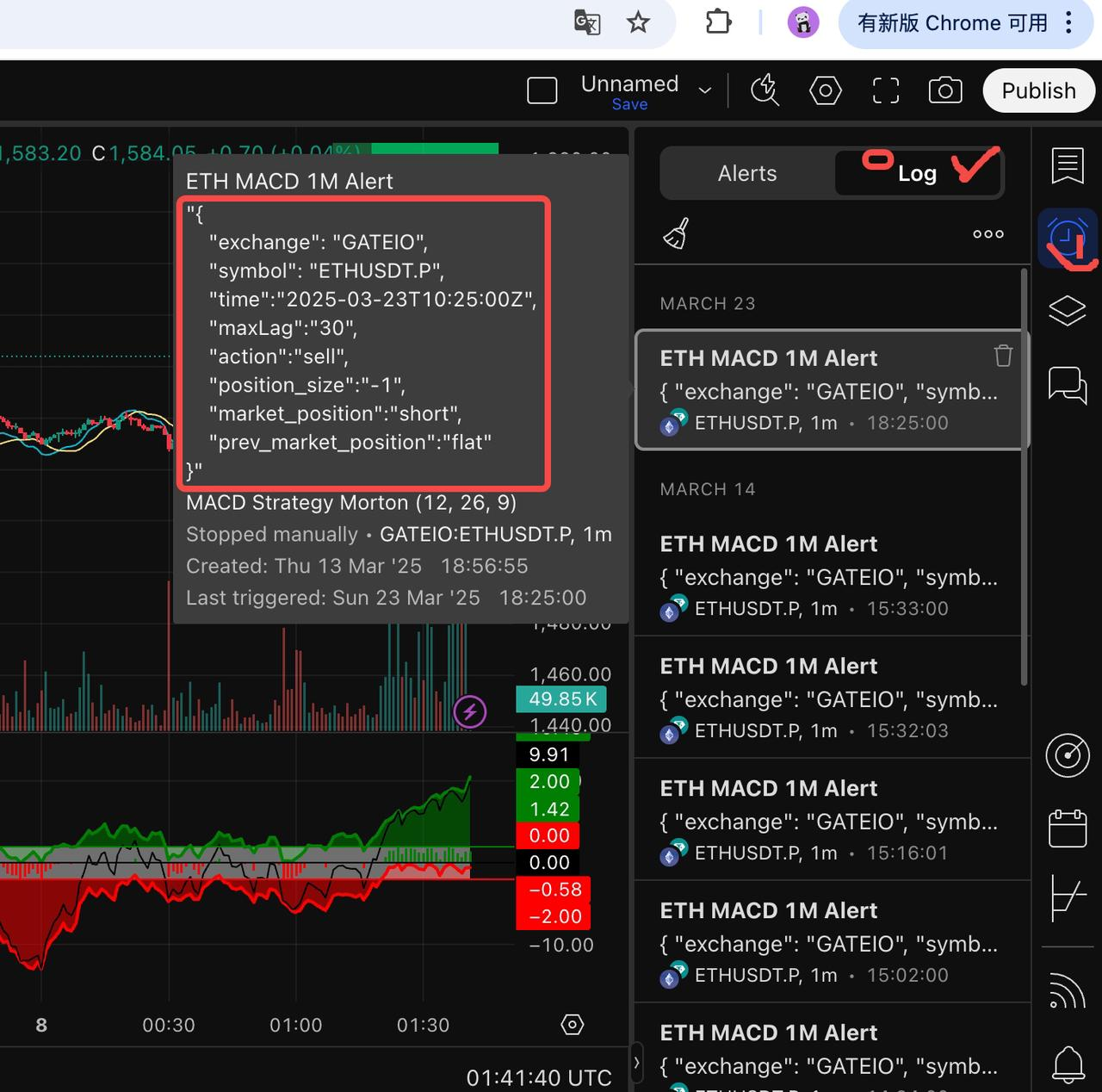
Validation des alertes :
Les utilisateurs peuvent vérifier les détails du signal sur TradingView pour s'assurer de la conformité avec les exigences de Gate.
Le contenu présenté ici est fourni à titre informatif et éducatif uniquement et ne constitue en aucun cas un conseil financier, d'investissement, de trading ou juridique, ni une offre ou une sollicitation d'achat ou de vente de tout actif numérique. Gate ne donne aucune garantie expresse ou implicite quant à l'exactitude, l'exhaustivité ou l'actualité des informations contenues dans ce Les fonctions des produits, les interfaces, les règles et les structures tarifaires peuvent être modifiées ou ajustées à tout moment. Veuillez vous référer aux dernières annonces ainsi qu'aux informations affichées sur la plateforme Gate pour obtenir les détails les plus précis.
Les investissements en actifs numériques comportent des risques importants, et les prix peuvent connaître d'importantes fluctuations. Vous pouvez perdre la totalité de votre investissement. Veillez à prendre vos décisions avec prudence, en fonction de votre situation financière et de votre tolérance au risque, après avoir pleinement compris les risques associés. Si nécessaire, il est recommandé de consulter un conseiller financier ou juridique indépendant.
Pour plus d'informations sur les risques potentiels, veuillez consulter la déclaration des risques et les conditions d'utilisation de Gate.
